Clothing images
Upload garment photos and pick the shots you need; the AI analyzes the style and details, proposes a plan, and generates once you confirm.
What you bring
The result
Steps
Step 1 of 4
Model try-on or outfit matching
“Model try-on” puts the garment on a model; “Outfit matching” takes your main item plus a few accessories and makes styled outfit shots.
Step 2 of 4
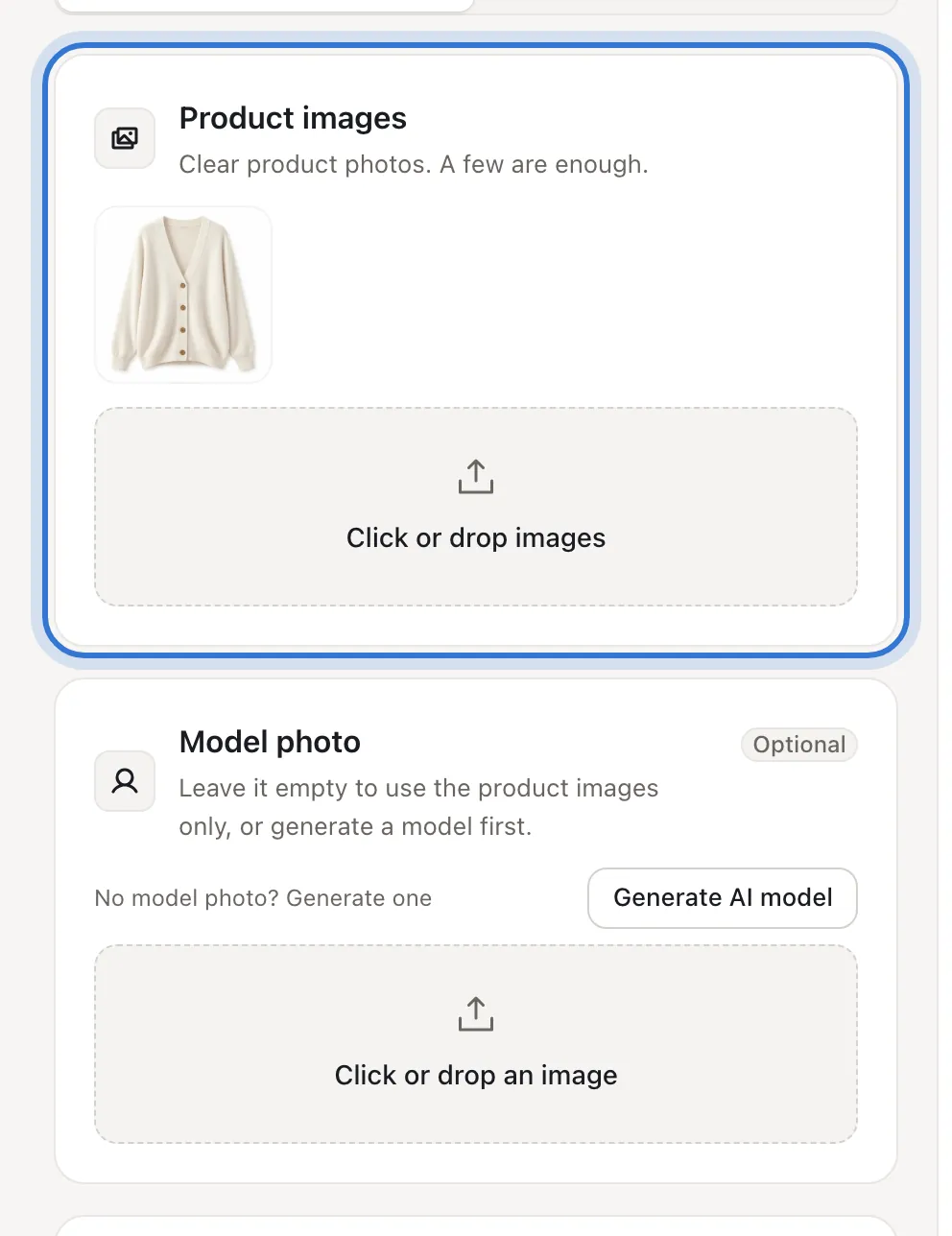
Upload the garment and a model (optional)
“Product images” takes the garment from a few angles or in detail. “Model photo” is optional: use your own model, press “Generate AI model” to create one, or leave it empty and render from the garment alone.
Step 3 of 4
Choose clothing detail modules
Main image, style selling points, fabric and craft, colors and sizes, care instructions, buyer photos… each click adds one image.
Step 4 of 4
Write the requirements, analyze, confirm
In “Requirements” describe the style, fabric, highlights and who it’s for; pick the copy language under “Output language” (a visual-only option adds no copy). The line under the button shows the estimated total, analysis included. Press “Analyze product”, review the plan, then generate.
Step 1 of 4

Model try-on or outfit matching
Related questions
Did this lesson help?