Inspiration, skills and teams in Canvas
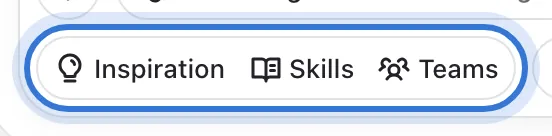
The “Inspiration”, “Skills” and “Teams” buttons under the input: equip a proven approach, add your product, and the board works that way.
Steps
Step 1 of 5
Three buttons under the input
“Inspiration” is a gallery of finished looks, “Skills” are approaches (a Xiaohongshu cover, white background to lifestyle…), and “Teams” bundle several skills into one workflow. Each opens the creative library.
Step 2 of 5
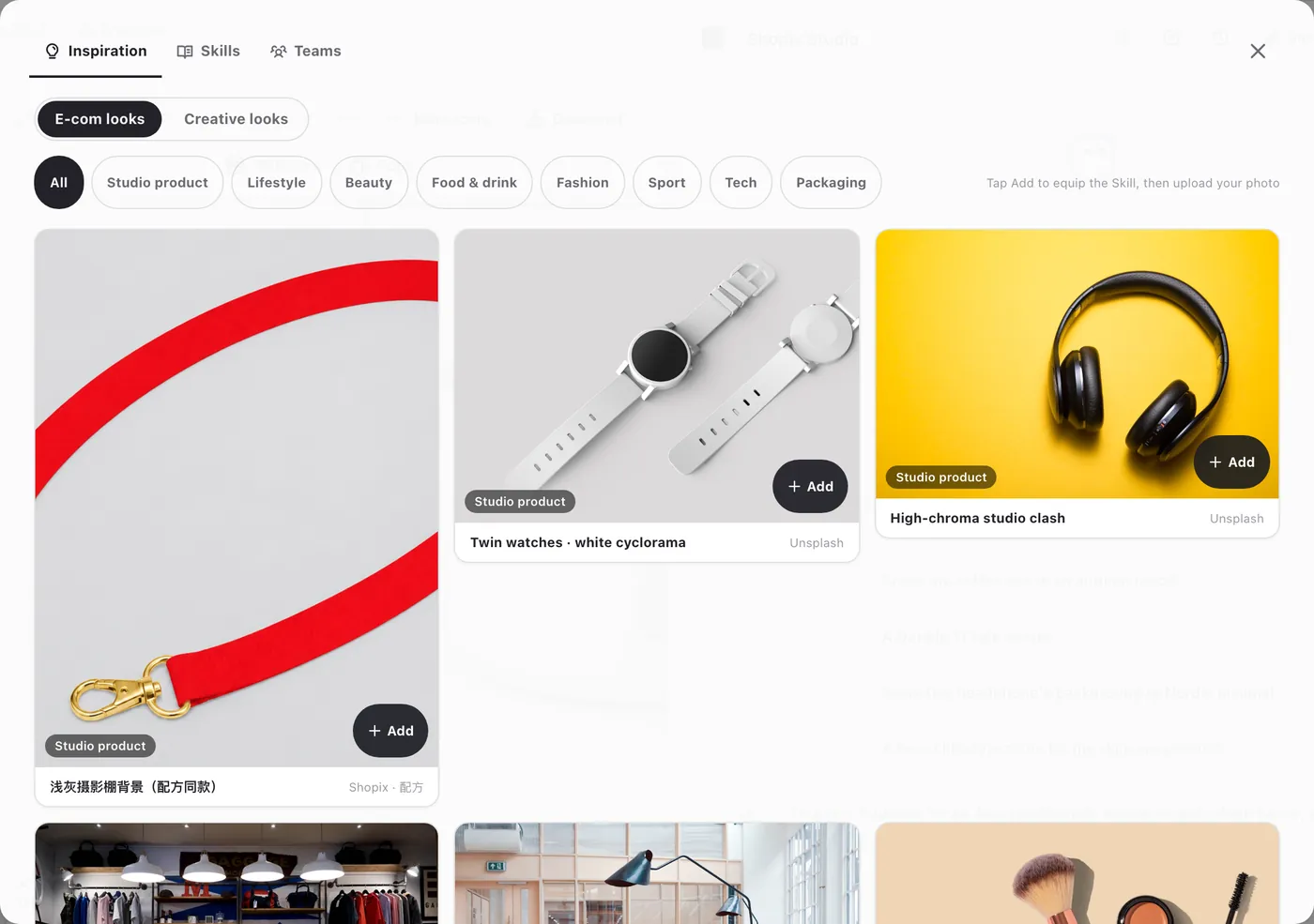
Inspiration: press “Add” on a look you like
Browse “E-com looks” or “Creative looks” by category and press “Add” on a look. That equips the skill behind it — the sample image itself never goes onto your board. Then upload your own product photo and generate.
NoteSelect your product on the board first, then open a look and press “Make mine” to render your product that way right away.
Step 3 of 5
Skills: pick an approach by purpose
“Official skills” are grouped by checks, hero, portrait, details, copy, trends and more, and you can search them; each says what it is for, and “Add” equips it. Under “My skills” you can write your own rules — say, your store’s hero image spec — and reuse them.
Step 4 of 5
Teams: invite a whole workflow
A team is a set of specialist skills — for example “Launch team”: one white-background photo goes in, gets a compliance check, and comes out as hero and detail images. Press “Invite team” and it joins the input; your requests are then handled by the whole team.
Step 5 of 5
Then just ask as usual
Equipped skills or teams show above the input; press “×” to remove one. Upload your product, write one line, and press “Send”.
Step 1 of 5
Click the highlighted area to continue
Related questions
Did this lesson help?