Using Shopix from AI tools
Connect Shopix to Claude Code, Codex or Cursor, ask in one sentence, and get hero and detail images saved on your computer.
What you bring
The result
Before you start
- Claude Code, Codex or Cursor installed on your computer
- Product photos on your computer: JPG, PNG or WebP, up to 10MB each
- Your main Shopix account (team sub-accounts can’t use this)
Steps
Step 1 of 5
“Use Shopix in AI tools” in the avatar menu
Sign in to Shopix, click your avatar in the top-right corner and choose “Use Shopix in AI tools”.
Step 2 of 5
Create an access key and copy it
The first time, click “Create access key”. The full key is shown only once, so click “Copy” and keep it somewhere safe. Later you only see the start of the key and when it was created.
NoteLost the key? Click “Create a new key”. The old key stops working at once, so update it in your AI tool.
Step 3 of 5
Pick your tool and copy the snippet
Choose “Claude Code”, “Codex” or “Cursor” and click the copy button on the snippet. Claude Code is one command to run in the terminal; for Codex paste it into ~/.codex/config.toml; for Cursor merge it into its MCP config. Right after you create a key the snippet already contains it; otherwise replace <YOUR_KEY> with your saved key. Any other tool that supports HTTP MCP can use the site address plus /api/mcp with the header Authorization: Bearer your key.
Step 4 of 5
Tell the AI what you need
Ask in plain words, for example “make 4 Amazon hero images from ./watch.jpg, selling points: slim, 14-day battery, waterproof” or “make a Taobao detail page from this photo”. For a photo on your computer just give its path; the AI uploads the original to Shopix without shrinking it. It makes hero images (1–8) and full detail-page sets; anything you leave out uses the defaults: generic marketplace, 4 hero images, the “Practical” version.
TipPut the selling points and any numbers that should appear on the images in your request; the AI can’t guess them.
Step 5 of 5
Check the credits, let it download
The AI first tells you how many credits the run costs and your balance, then starts. Images are generated at the same time, so a set is usually ready in 1–2 minutes. The AI waits on its own and downloads the images to your computer; it tells you the folder, or name one yourself. The same images are also in History on the website.
Step 1 of 5
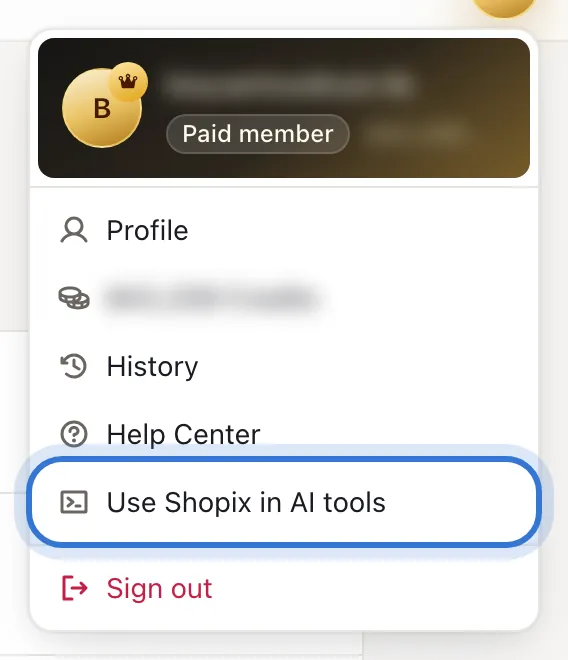
Click the highlighted area to continue
Not happy with the result?
- The AI says the key is invalid (401)
- The key is wrong or was replaced. Click “Create a new key” in the setup window and update your AI tool’s config.
- The AI says there aren’t enough credits (402)
- Top up on the pricing page, then ask the AI to run it again.
- The AI keeps asking about marketplace or count
- Skip the details: repeat what you want with the image path; anything you leave out uses the defaults.
- Downloaded images have a watermark
- Accounts that have never purchased get watermarked previews; after any purchase the same links serve the originals.
- The avatar menu doesn’t have this item
- Team sub-accounts can’t use it; sign in with the main account.
Related questions
Did this lesson help?