Canvas workflows: get it right once, reuse it
Once the board makes an image you like, “Save as workflow”; later select a batch of product photos and run the same workflow on all of them.
Steps
Step 1 of 3
Make one image you’re happy with
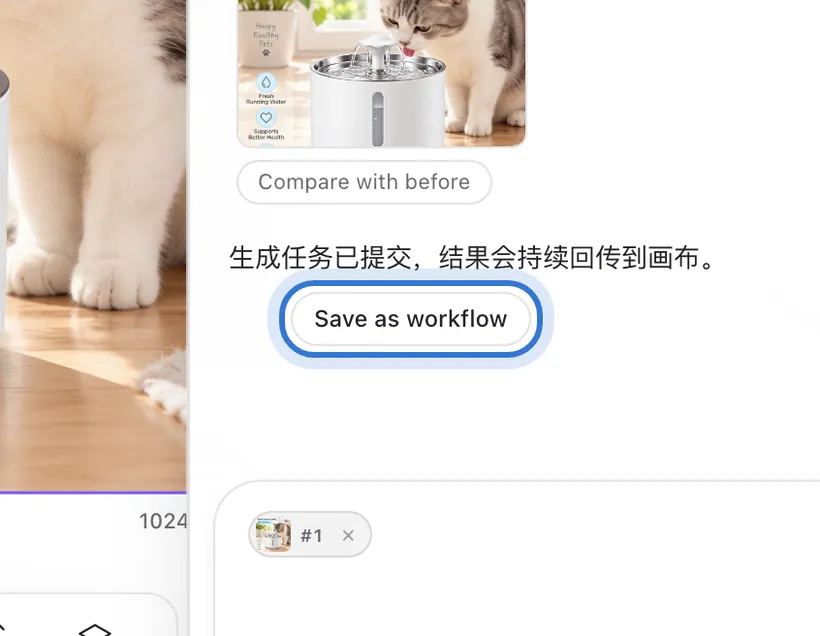
Work an image on the board until it’s right. Under the assistant’s reply press “Save as workflow” — the steps and settings of that run are saved.
Step 2 of 3
Open “Workflows”
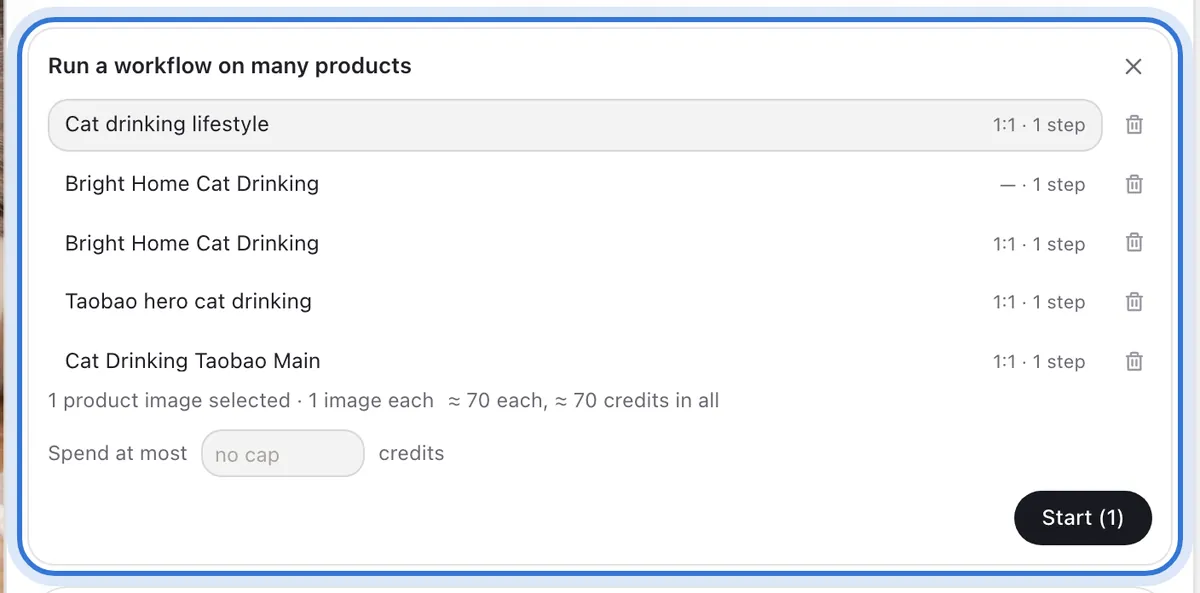
Press “Workflows” under the input to open “Run a workflow on many products”, with your saved workflows and their steps. If you haven’t saved one yet, it says so.
Step 3 of 3
Select products and run
Select the product photos on the board; the panel shows how many are selected, how many images each gets, and the estimated credits. Set “Spend at most” to cap the batch. Press “Start” and each product’s progress updates in the panel.
Step 1 of 3
Click the highlighted area to continue
Related questions
Did this lesson help?